

Quickpay integration with WooCommerce + Subscriptions makes it easy to get started with accepting online payments.
WooCommerce is a shop addon for WordPress and we have a free module for WooCommerce and WooCommerce Subscriptions. With this module you can use Quickpay as payment gateway with WooCommerce and WooCommerce Subscriptions.
Visit www.woothemes.com for more information about the system.
With the Quickpay module for WooCommerce, you can accept payments in your WooCommerce shop.
Capture and refund of payments can be made directly from WooCommerce.
Download WooCommerce Module (You’ll be redirected to wordpress.org)
1. In WooCommerce admin go to Plugins > Add plugin, search for Quickpay.
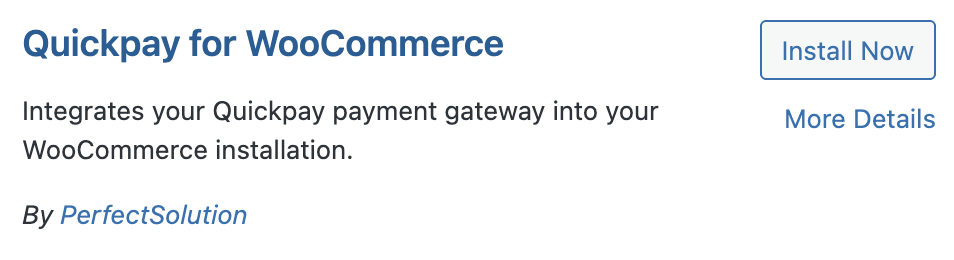
2. Click Install now.
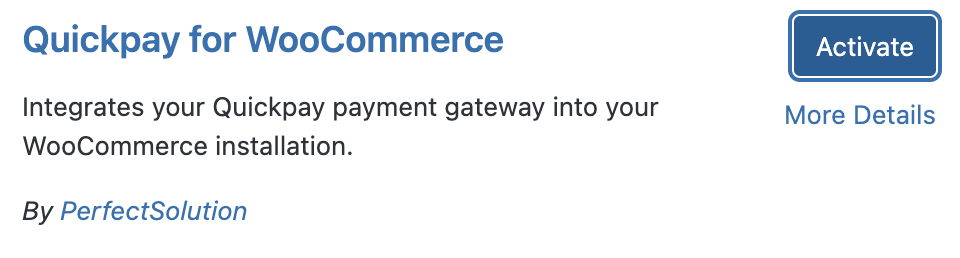
3. Once it is installed, click Activate.
4. Click Settings to start setting up the plugin. Refrain from enabling Automatic updates, as you should always test new plugins in your development environment before updating your live environment.

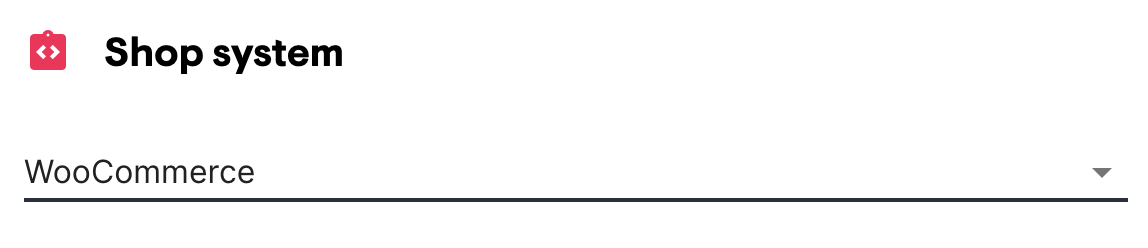
1. In the Quickpay manager, first go to Settings > Merchant and select WooCommerce in Shop system.
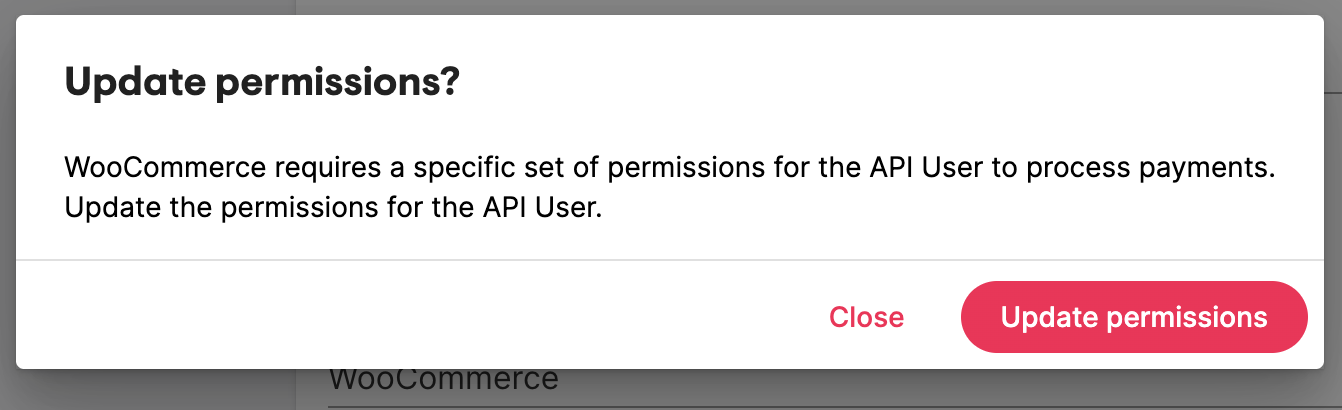
2. If you are asked to update permissions, simply click Update permissions and your API key will be correctly configured right away.
3. Then go to Settings > Integration.
4. Find API User - API key. Copy the API key and paste it into WooCommerce under API User - API key.
5. Now do the same for the Private key.
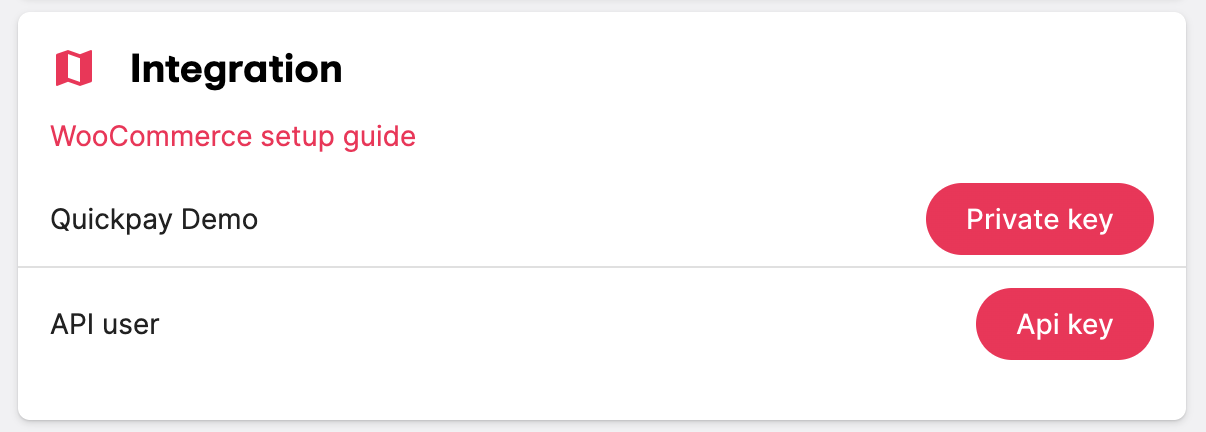
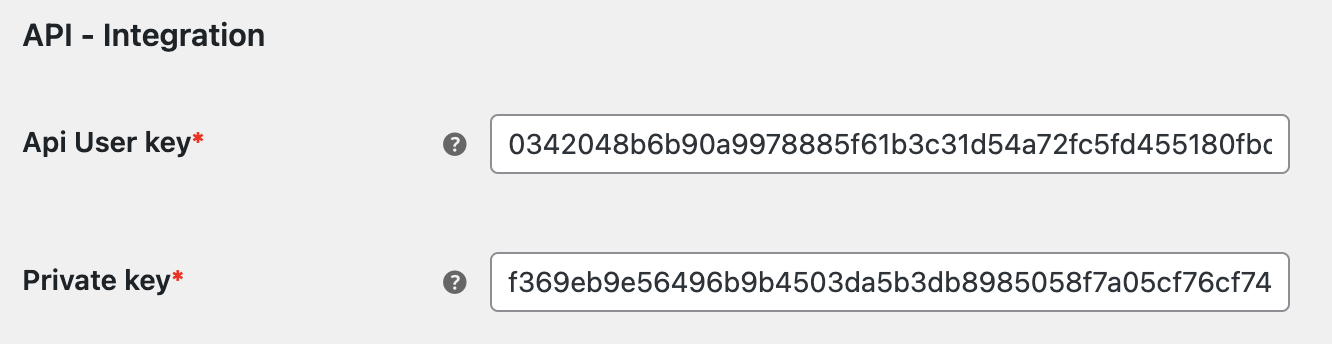
6. Change the rest of the settings to fit your shop and finish by clicking “Save changes”. See further down the page for help with Settings.
7. Disable automatic updates for the Quickpay module. This is done from the Plugin overview in WordPress. We always recommend testing new versions of modules on a development site first.
If you need more help, you can find tips and guides here.
The following Quickpay parameters can be set directly in the payment settings in WooCommerce.
Set if the amount should be captured immediately after authorize (digital products) or when the product has been shipped.
Enable to improve application and web-server performance.
Specify payment methods on the default Quickpay payment option in WooCommerce.
Choose your branding of the payment window.
Enable surcharging of payment fee.
Enable to automatically capture payments when order state is set to “Complete”.
Enable to automatically complete an order when capture callbacks are sent to WooCommerce. Callbacks are sent by Quickpay when the payment is captured from either the shop or the Quickpay manager. Keep disabled to manually complete orders.
Enable to automatically cancel payments via the API when an order’s status changes to cancelled.
Edit the text and credit card icons in your payment window, as well as email instructions to be added to confirmation emails.
Specify text on cardholder’s statement (only Clearhaus).
Your Google Analytics Tracking ID.
Select additional data that should be sent to Quickpay on the payments.
As the default option, Quickpay is the payment option your customers select when they are ready to pay. When they do so, they are redirected to Quickpay’s payment window, where they can fill out their payment card information or select another payment method.
It’s also possible to add more payment options for other payment methods. In WooCommerce > Settings > Payments, other “Quickpay - payment options” can be enabled. For example, if you enable “Quickpay - MobilePay”, your customers can select MobilePay directly on the checkout page, without being redirected to Quickpay first.
The Quickpay module supports WooCommerce Subscriptions.
A subscription is a product type. You can either make the first capture using autocapture once the subscription has been completed, or you can do a manual capture. If you do not use autocapture on the subscription, the first capture needs to be done from the Quickpay manager.
Renewals always get captured right away.
If you receive MobilePay Subscriptions, you must activate the “Quickpay - MobilePay Subscriptions” gateway in WooCommerce Payment Options.
Next, go to the Quickpay settings (also in WooCommerce) and set the Payment methods field to !mobilepay-subscriptions (it is important that you remember to put ! in front).
If a subscription has a pre-paid period, then the subscription and recurring will not be cancelled until this period has been reached, even if the customer cancels the subscription and recurring from their “my account” page in the shop. Please see WooCommerce Subscription. If the customer has paid with MobilePay, the customer can cancel both the subscription and recurring from the app directly. Merchant can also cancel directly from the Quickpay-manager.
MobilePay Subscriptions
For best support of WooCommerce subscription features, the option to choose MobilePay Subscription must be available during checkout. This supports the customer creating their subscription and an immediate recurring payment in WooCommerce Subscription.
order number already used
If you get the error “order number already used”, it can be fixed by giving your order numbers a prefix.
You can either do this by using a plugin like WooCommerce Sequential Order Numbers, which only needs to be activated and then it will do the rest, or you can add this piece of code into functions.php in your theme in WordPress:
function quickpay_change_order_number_for_api($order_number) {
	return 'QP-' . $order_number;
}
add_filter('woocommerce_quickpay_order_number_for_api', 'quickpay_change_order_number_for_api');
You can replace QP with the prefix you desire.
Shops using WooCommerce + WooCommerce Subscriptions
Integration partner_
If your support request is beyond what we are able to help with, you can contact one of our integration partners. Please note, that integration partners can charge a fee for support, installation, etc._
Please note! Use of the integration is at your own risk, and we only provide limited support on installation and usage of the integration.
Support
Monday - Thursday: 09:00 - 16:00
Friday: 09:00 - 15:30
+45 77 34 86 42
Support
support@quickpay.net
Sales
sales@quickpay.net
Accounting
accounting@quickpay.net
Communications
communications@quickpay.net

